
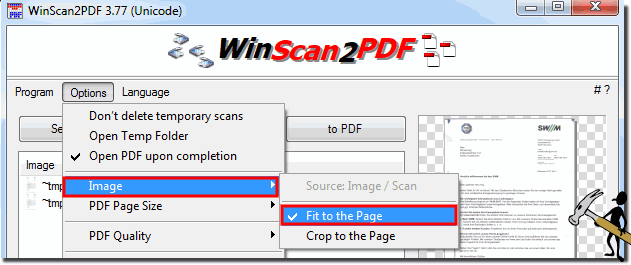
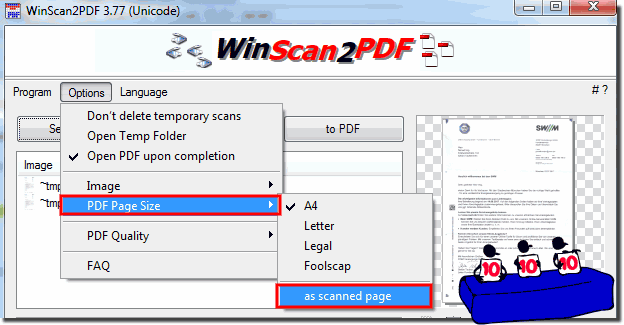
The solution is simple, to keep the aspect ratio when scanning with WinScan2PDF !1.) ... Switching to the correct image to page ratio!
|
| (Image-1) Aspect ratio when scanning a PDF page! |
![]() |
| (Image-2) Unattractive aspect ratio when scanning! |
![]() |
If you like reading,
scanning an old photo or an image from a magazine follows the same principles. You should scan the original at a resolution that gives you the desired number of dpi for whatever print format you want to create after scanning. Aspect ratio, also known as aspect ratio, is the ratio between the width and height of a photo. It essentially describes the shape of your image. The most commonly used aspect ratio is 16 to 9 numbers. And the width is always the first number, followed by the height. An image that is three times as wide as it is tall has an aspect ratio of 3:1. It is important to note that an image aspect ratio is not the actual size of the image in pixels or centimeters. For example, a square image that is 500 x 500 pixels has an aspect ratio of 1:1. An image that is 1500 x 1500 pixels has the same aspect ratio of 1:1. The images are different sizes but the same aspect ratio. Consider another example. Image (1) is 800 x 400 pixels. And image (2) is 1200 x 600 pixels. What is the aspect ratio for each is so easy to calculate, each image is a rectangle with an aspect ratio of 2:1 which is exactly the same 4:2 or 40 to 20 or 400 to 200 = 800 to 400, although width and height for Each image is different, the division result is the same.
2.) Is there anything to consider when it comes to aspect ratio and scanning!
An aspect ratio is the proportional relationship between the height and width of an image or document. If you start scanning images that have the same aspect ratio, you can better decide whether they should be cropped, for example to DIN A4.See: ►►► Scan area or page size as DIN A4 to PDF?
Aspect Ratio & Scanning Technical Information
1. What exactly is aspect ratio?
2. Can I change the aspect ratio when scanning?
3. How do I ensure the aspect ratio stays the same?
4. I want to post a square image on social media. Do I need to consider this when scanning?
5. My scanned image looks distorted on the monitor. What happened?
6. Does the aspect ratio affect the file size?
7. I have an old, blurry photo. Can I have it automatically straightened during scanning while maintaining the aspect ratio?
8. My goal is to print (e.g., 10x15 cm). What aspect ratio do I need?
9. Short checklist for the perfect scan:
1.) What exactly is the aspect ratio?
The aspect ratio describes the proportional relationship between the width and height of an image. It is usually expressed as a ratio (e.g., 3:2 , 4:3 , 16:9
) or as a fraction. * Classic photos: Often 3:2 (35mm film) or 4:3 (older digital cameras, pocket cameras).
* Documents: Usually something like a DIN format (e.g., A4 corresponds to approximately 1:√2).
2.) Am I allowed to change the aspect ratio when scanning?
No. The aspect ratio is an integral part of your original image. If you change it, the image will be compressed or stretched. Circles will become ellipses, faces will appear wider or narrower.
3.) How do I ensure that the aspect ratio remains the same?
1. Use the scanner glass: Place the original flat and level on the scanner glass. It must not be tilted.
2. Preview scan: Always preview the scan first.
3. Select the area: In the scanning software, select the area you want to scan. Most good scanning programs have a "Keep Original Size" function or a lock icon (lock aspect ratio) . This ensures that dragging a corner will fix the aspect ratio.
4. Manual calculation (in case of problems): If the software malfunctions, note the pixel values of the preview. If the preview image is 800 x 600 pixels (4:3), the final scan must also have a 4:3 aspect ratio (e.g., 3000 x 2250 pixels).
4.) I want to post a square image on social media. Do I need to take that into account when scanning?
No. Always scan the image in its original aspect ratio (e.g., 3:2). Crop it to square (1:1) or portrait format for Instagram after scanning, using an image editing program (such as Photoshop, GIMP, or even your phone's gallery app). This way, you'll still have the unaltered original image.
5.) My scanned image looks distorted on the monitor. What happened?
Possible causes:
* Non-square pixels (rare with modern scanners): Some older formats (like some video formats) use rectangular pixels. This is almost never the case with photos and flatbed scanners today.
* Incorrect resolution during export: When scaling an image for a specific purpose (e.g., printing), you should only change the image size, not activate "non-proportional scaling . "
* Inserted at an angle: If the original is tilted, the software has to straighten it. This can lead to slight distortions if the software isn't very good at calculating the angle. Better: Align the original perfectly.
6.) Does the aspect ratio play a role in the file size?
Indirectly, yes. If you have a panoramic image (very wide) or a square image, it will naturally have more or fewer pixels than a standard photo. However, the decisive factors for the file size are the total number of pixels (width x height) and the color depth.
7.) I have an old, blurry photo. Can I have it automatically straightened during scanning while maintaining the aspect ratio?
Many scanner software programs have an "Auto Crop" or "Straighten" function. These are usually safe as long as the "Maintain Aspect Ratio" option is enabled . However, if the software rotates the image significantly and then crops the edges, you might lose a small part of the image, but the aspect ratio will remain correct.
8.) My goal is to print (e.g., 10x15 cm). What aspect ratio do I need?
* 10x15 cm corresponds to a 3:2 aspect ratio . Perfect for 35mm film and many system cameras.
* 13x18 cm is also 3:2 .
* 11x15 cm (postcard) is approximately 3:4 (portrait format).
Important: If your scanned original has a 4:3 aspect ratio (e.g., from an old compact camera) and you want to print it in 10x15 cm (3:2) format, you will have to crop it or accept white borders. It's better to do both of these things yourself beforehand rather than letting the printer at the drugstore do it by chance.
9.) Short checklist for the perfect scan:
1. Align the original (straight and flat).
2. Preview .
3. Select the crop area (not too close, leave some margin).
4. Activate "Lock aspect ratio" (lock icon).
5. Scan and save as a TIFF or high-quality JPG.
6. Post-processing (rotate, crop for social media) separately in an image editor.
Adjust aspect ratio when scanning for/on: Windows 11, 10 , 8.1, 8, 7: Pro, Home, Enterprise, Basic, Premium, Professional, Starter, Ultimate, Windows-Server 2019, 2016, 2012
FAQ 4: Updated on: 6 March 2026 20:11


