Software-OK
≡... News | ... Home | ... FAQ | Impressum | Contact | Listed at | Thank you |

  
HOME ► Faq ► FAQ - ClassicDesktopClock ► ««« FAQ 09 / 16 »»»

Can I use the Analog Desktop Clock on Microsoft Windows 11 OS?


Of course, you can continue to use the analog clock on the new Microsoft Windows 11 desktop operating system!


Content:

1.) ... Use analog desktop clock on Microsoft Windows 11 OS!
2.) ... Does an analog desktop clock on Microsoft Windows make sense, or is it just a burden?

1.) Use analog desktop clock on Microsoft Windows 11 OS!


Please always use the: ►► latest analog clock for the Windows 11 desktop !

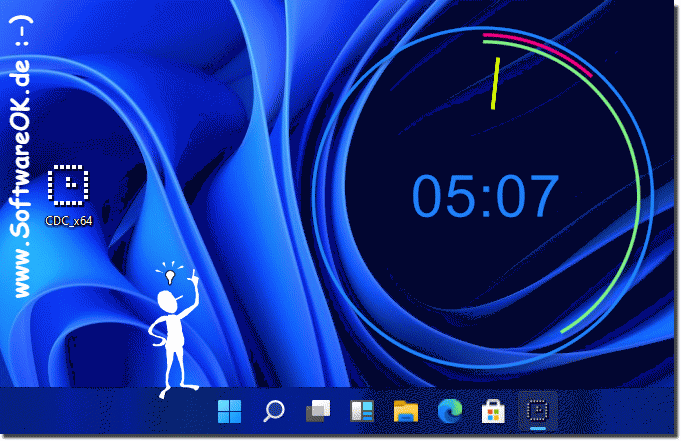
It is one of the most beautiful desktop clocks, the analog clock is OK for all Windows operating systems from the desktop clocks category on software , and will continue to tick nicely and cleanly on Windows 11 and display the current time in analog form!

 
(Image-1) The most beautiful analog desktop clock on Microsoft's Windows 11!
The most beautiful analog desktop clock on Microsoft's Windows 11!

-
▲ Back to the top ▲


2.) Does an analog desktop clock on Microsoft Windows make sense, or is it just a burden?

The usefulness of an analog desktop clock on Microsoft Windows depends on the user's individual preferences, work style and requirements. Here are some considerations:

Pros:

1. Aesthetics:

For many users, an analog desktop clock can be an aesthetic addition to the desktop. It gives the desktop a classic and elegant touch that some users prefer.

2. Visibility:

A well-placed analog clock can be read quickly and easily without having to open a separate application. This can be useful if you regularly need to keep track of time while working on the computer.

3. Minimalist Design:

Some analog desktops have a minimalist design that does not clutter the desk. They provide an easy way to keep track of time without additional features or distractions.

Cons:

1. Distraction:

For some users, an analog desktop clock can be a distraction, especially if it is in an area that is often in view. The clock can cause you to worry about time more often than necessary, which can negatively impact productivity.

2. Space requirements:

A desktop clock takes up space on the desktop that could be more useful for other applications or icons. If the screen is already full or you prefer a minimalist work environment, an additional clock can be annoying.

3. Redundancy:

In many cases, the operating system already shows the time in the taskbar. An additional desktop can therefore be superfluous and offer no real added value other than a visual element.

Info:


Whether an analog desktop makes sense depends on how you use your computer and what your preferences are. Some users will find them useful and engaging, while others may find them unnecessary or annoying. When deciding whether an analog desktop makes sense for you, it's important to consider your own preferences and work habits.


-
▲ Back to the top ▲


1. How can I use an analog desktop clock on Windows 11?

To use an analog desktop clock on Windows 11, you can download and install a suitable application from the Microsoft Store.

2. Is there a way to set up an analog clock on the new Microsoft Windows 11 desktop?

Yes, you can set up an analog clock on your Windows 11 desktop by installing and configuring an appropriate application software.

3. Is it possible to install the analog desktop clock on Windows 11?

Yes, many vendors offer desktop clocks compatible with Windows 11. You can choose such a clock and install it on your system.

4. What desktop clocks are available for Windows 11?

There are various desktop clocks available for Windows 11, including analog, digital, and thematic clocks. You can search for suitable applications on the Microsoft Store.

5. Can I install an analog clock on my Windows 11 operating system?

Yes, it is possible to install an analog clock on your Windows 11 operating system. All you need to do is find a suitable application and set it up according to your preferences.

6. How can I get the latest analog clock on my Windows 11 desktop?

To get the latest analog clock on your Windows 11 desktop, you can search for and download updated applications from the Microsoft Store.

7. Which desktop clocks are compatible with Windows 11?

Most desktop clocks designed for previous versions of Windows are also compatible with Windows 11. However, you can make sure that the application you choose is explicitly optimized for Windows 11.

8. Where can I find the most beautiful desktop clock for Windows 11?

You can search for desktop clocks on the Microsoft Store and choose the one that best suits your aesthetic sense. Often, developers offer different designs and customization options.

9. Is there a desktop clock for Windows 11 that displays the current time in analog?

Yes, there are various desktop clocks for Windows 11 that can display the current time in analog form. You can search for related applications in the Microsoft Store.

10. Can I use Software OK's desktop clock on Windows 11 too?

Yes, Software OK's desktop clock should also be compatible with Windows 11, provided there are no specific incompatibility issues. You can check the application in the Microsoft Store to make sure it is optimized for Windows 11.

11. Is the analog desktop clock compatible with Windows 11?

The compatibility of the analog desktop clock with Windows 11 depends on the specific application. However, most desktop clocks should work fine on Windows 11, provided they are designed for that operating system.

12. Which desktop clocks work on the new Windows 11 operating system?

There are a variety of desktop clocks that work on the new Windows 11 operating system. You can search for desktop clocks in the Microsoft Store and choose the one that best suits your needs.

13. How do I install a desktop clock on my Windows 11 desktop?

To install a desktop clock on your Windows 11 desktop, you can download and install it from the Microsoft Store. Once installed, you can configure the clock according to your preferences.

14. What are the ways to integrate an analog clock on Windows 11?

One way to integrate an analog clock on Windows 11 is to download and install an appropriate application from the Microsoft Store. You can then place the application on your desktop and have it display the time in analog.

15. Can I use Software OK's analog clock on Windows 11?

Yes, as long as Software OK's analog clock is compatible with Windows 11, you can use it on that operating system. Check compatibility in the Microsoft Store and download the application.

16. How can I place an analog clock on my Windows 11 desktop?

After installing an analog clock application on your Windows 11 desktop, you can place it on your desktop by dragging and dropping it or using the context menu. You can also use the application's settings to adjust its position.

17. Which desktop clocks offer an analog display on Windows 11?

There are several desktop clocks in the Microsoft Store that offer an analog display on Windows 11. You can search for applications that explicitly display an analog time.

18. Is Software OK's desktop clock compatible with Windows 11?

The compatibility of Software OK's desktop clock with Windows 11 depends on the specific application. It is advisable to search for the application in the Microsoft Store and check compatibility.

19. Are there special desktop clocks for Windows 11?

Yes, there are special desktop clocks designed for Windows 11 that may offer additional features tailored specifically to this operating system. You can search for such applications in the Microsoft Store.

20. Can I upgrade the analog desktop clock from Windows 10 to Windows 11?

The ability to upgrade an analog desktop clock from Windows 10 to Windows 11 depends on the specific application. Some applications may be able to be updated, while others may no longer be supported. You can check the Microsoft Store for an updated version.

21. Which desktop clocks work seamlessly with Windows 11?

There are various desktop clocks that work seamlessly with Windows 11. You can search the Microsoft Store for applications that are explicitly optimized for Windows 11 and run smoothly on this operating system.

22. How can I display the time on my Windows 11 desktop in analog?

To display the time on your Windows 11 desktop in analog, you can download and install a suitable application from the Microsoft Store. After installation, you can configure the application accordingly.

23. Are desktop clocks on Windows 11 helpful or rather annoying?

The usefulness of desktop clocks on Windows 11 depends on the user's individual preferences and work habits. Some users find them helpful for quickly keeping track of the time, while others may find them distracting.

24. Can I customize the analog clock on my Windows 11 desktop?

Yes, many desktop clocks offer customization options that let you customize the look and behavior of the analog clock on your Windows 11 desktop. For example, you can change the watch face, hands, and background colors.

25. Is there a way to personalize the desktop clock on Windows 11?

Yes, many Windows 11 desktop clocks offer extensive personalization options. You can customize the look, position, and features of the clock to suit your individual preferences. Look for apps in the Microsoft Store that offer these features.


FAQ 9: Updated on: 3 June 2024 20:46 Windows


► ► ► ► ... more information about the software ClassicDesktopClock     

ClassicDesktopClock

Force the window to be in the foreground or in the background!


Sometimes you want to see the window absolutely in the foreground under Windows 11, 10, etc., or absolutely in the background above the background image
ClassicDesktopClock

How do I make the hands colored in the desktop clock?


Its easy to customize the pointer color in the desktop clock under Windows 12, 11, 10 or MS Server 2025, 2022, etc. 1. As always,  start the analog desktop
ClassicDesktopClock

Why a classic analog desktop clock on modern Windows OS?


Detailed user questions and very detailed answers about using a classic analog desktop clock on modern Windows PC systems Windows 12, 11, 10. The questions
ClassicDesktopClock

Advantages of the classic analog desktop clock under Windows!?


Detailed user questions with very detailed answers on the topic of advantages of the classic analog desktop clock under Windows 10, 11 and 12. The questions
ClassicDesktopClock

Who should not use the Classic Analog Desktop Clock on Windows?


Here are 20 creative and detailed user questions with very detailed answers on the topic "Who should not use the classic analog desktop clock on Windows
ClassicDesktopClock

Who benefits most from the classic analog desktop clock in Windows?


Detailed questions with very detailed answers Topic: Who benefits most from a transparent classic analog desktop clock on Windows 10, 11 and 12, and why?
ClassicDesktopClock

Who should definitely use the desktop clock as a classic analog clock under Windows?


Detailed user questions and very detailed answers regarding the topic of who should definitely use the classic analog desktop clock under Windows: This list

»»

  My question is not there in the FAQ
Asked questions on this answer:
  1. Are there free analog desktop clocks for Windows 11?
  2. What are the advantages of an analog desktop clock on the Windows 11 OS?
  3. How to remove an analog desktop clock from Windows 11?
  4. What classic designs are there for analog desktop clocks on Windows?
  5. I'm a big fan of this kind of watches that can be placed on the Windows desktop?

  6. Is the analog desktop clock compatible with all Windows operating systems?
  7. Is the analog clock that used to be available in the sidebar now available on the desktop for Windows 11 desktop?
  8. Analog clock for Windows 11 and the ability to change general options with the option to pin them to the desktop and use them?
  9. Can I use the Analog Desktop Clock on Microsoft Windows 11?
  10. What elegant designs are there for analog desktop clocks on Windows 11?
  11. Which version of the analog clock should you use for Windows 11?
  12. What minimalist designs are there for analog desktop clocks on Windows?
  13. How much space does an analog desktop clock take up on the Windows desktop?
  14. Is an analog desktop clock on Windows 11 just a visual element?
  15. Can an analog desktop clock on Windows 11 be annoying?
  16. What are the requirements of the latest analog clock on Windows 11?
  17. How to install the most beautiful analog desktop clock on Windows 11?
  18. Can an analog desktop clock on Windows 11 be distracting?
  19. How to install the latest analog clock on Windows 11?
  20. Which users find analog desktop clocks on Windows particularly useful?
  21. How does an analog desktop clock affect the visibility of the time on Windows?
  22. Can the analog desktop clock on Windows 11 increase productivity?
  23. Are there instructions for using the analog desktop clock on Windows 11?
  24. What aesthetic benefits does an analog desktop clock offer?
  25. Is it easy to read the time on an analog desktop clock?
  26. Are there any disadvantages to an analog desktop clock on Windows?
  27. Is the analog desktop clock also suitable for earlier versions of Windows?
  28. Why can an analog desktop clock be unnecessary on Windows 11?
  29. Can the analog desktop clock complement the taskbar on Windows 11?
  30. How to avoid distraction from an analog desktop clock on Windows?
  31. A Vista Style or XP Analog Desktop Clock for Windows 11 and 10, is that one of the features I use regularly in Windows?
  32. Windows 11 clock that can be below all other windows, and a clear appearance and design?
  33. How to Choose the Best Analog Desktop Clock for Windows 11 Desktop?
  34. Can the analog desktop clock be customized on Windows 11?
  35. Looking for a Windows 11 clock with default options that everyone can use?
  36. How is the analog desktop clock different from digital clocks on Windows 11?
  37. How can the analog desktop clock on Windows 11 help productivity?
  38. As an old Windows XP user, I've been looking for a desktop clock that works similarly for a long time, a clock that works really well and looks particularly good on Windows 11?
  39. Why do some users prefer an analog desktop clock on Windows?
  40. Which software offers the best analog desktop clock for Windows 11?
Keywords: classic, desktop, clock, analog, Microsoft, windows, 11, continue, watch, Questions, Answers, Software


  + Freeware
  + Order on the PC
  + File management
  + Automation
  + Office Tools
  + PC testing tools
  + Decoration and fun
  + Desktop-Clocks
  + Security

  + SoftwareOK Pages
  + Micro Staff
  + Freeware-1
  + Freeware-2
  + Freeware-3
  + FAQ
  + Downloads

  + Top
  + Desktop-OK
  + The Quad Explorer
  + Don't Sleep
  + Win-Scan-2-PDF
  + Quick-Text-Past
  + Print Folder Tree
  + Find Same Images
  + Experience-Index-OK
  + Font-View-OK


  + Freeware
  + TheAeroClock
  + Bitte.Wenden
  + CoronaKO
  + MatriX.CoronaKO
  + Find.Same.Images.OK
  + 3D.Benchmark.OK
  + PhotoResizerOK
  + Office.Files.Images
  + Film.Strip.Explorer
  + PAD-s


Home | Thanks | Contact | Link me | FAQ | Settings | Windows 10 | gc24b | English-AV | Impressum | Translate | PayPal | PAD-s

 © 2025 by Nenad Hrg softwareok.de • softwareok.com • softwareok.com • softwareok.eu
37.431 msec.


>> ☕ Buy SoftwareOK a Coffee ☕ <<


► Where to find Experience Index, PC rating in Windows-10? ◄
► How to see the Folder network access under Windows 10 or 11? ◄
► How do I improve working with the keyboard on Windows 10 / 11? ◄
► Disable Auto Connections to WiFi on Windows 10 / 11 (Wireless, WLAN)? ◄


This website does not store personal data. However, third-party providers are used to display ads,
which are managed by Google and comply with the IAB Transparency and Consent Framework (IAB-TCF).
The CMP ID is 300 and can be individually customized at the bottom of the page.
more Infos & Privacy Policy

....